As part of one of our deployment we had to modify lot of data in a SharePoint list, which was used by the InfoPath forms for populating the dropdowns. To make the deployment steps short we gave the steps to use the Edit in Datasheet view option. But when the deployment team was executing the steps, they were not able to use the Edit in Datasheet view and they were getting some activeX related issues.
We were troubleshooting this issue and found that this problem is mostly related to a office component which corrupts because of some reason. We followed the steps mentioned below and it resolved the error.
1.Go go to this directory:C:\Program Files\Microsoft Office\Office12
2.Then delete OWSSUPP.DLL after taking a backup
3.Then run Microsoft Office Diagnostics (Start-Programs-Microsoft Office-Microsoft Office Tools - Microsoft Office Diagnostics).It will verify your installation and recreate the OWSSUPP.DLL file.
Showing posts with label MOSS. Show all posts
Showing posts with label MOSS. Show all posts
Monday, July 27, 2009

Sunday, April 26, 2009
Save site as template link is missing
I was trying to create the site template from a site where the "Office SharePoint Server Publishing" feature was activated for some reason. But the issue here is after activating the "Office SharePoint Server Publishing" feature the "Save site as template" link from the "Look and Feel" section of site settings is missing.
I understand that its disabled because the functionalities part of "Office SharePoint server Publishing" can't be included in the site template(.stp) file. But i have applied lot of customization which are not related to publishing feature, I will be requiring those changes in a template file.
So if we have the core template we can apply the publishing related changes on top of the site created with the core template.For that we need the core template...we can still get the template by calling the "_layouts/savetmpl.aspx" page from the address bar. We should also make sure we will be applying the publishing related changes on top of it.
I understand that its disabled because the functionalities part of "Office SharePoint server Publishing" can't be included in the site template(.stp) file. But i have applied lot of customization which are not related to publishing feature, I will be requiring those changes in a template file.
So if we have the core template we can apply the publishing related changes on top of the site created with the core template.For that we need the core template...we can still get the template by calling the "_layouts/savetmpl.aspx" page from the address bar. We should also make sure we will be applying the publishing related changes on top of it.
The template you have chosen is invalid or cannot be found
I was trying to create a site collection in my Virtual machine using a site template taken in a test server. But i was keep getting the weired error "The template you have chosen is invalid or cannot be found". I checked the publishing features of the source site and confirmed those are turned off while taking the template. I was able to understand some features available in the test server might be missing in my virtual machine.
There were lot of features installed in the test server. It was bit difficult to trace the missing feature. Other issues was, using the Site Collection features list I couldn't trace the features which will be installed as part of SharePoint infrastructure updates. However to track the missing features the following tool[STPInspector] http://www.codeplex.com/STPInspector developed by Madhur ahuja was very helpful. It showed the features missing in the source machine. The best part was, i was able to identify the search related features which will be installed as part of the SharePoint Infrastructure updates.
I installed the following Infrastructure updates after the service pack installation.
There were lot of features installed in the test server. It was bit difficult to trace the missing feature. Other issues was, using the Site Collection features list I couldn't trace the features which will be installed as part of SharePoint infrastructure updates. However to track the missing features the following tool[STPInspector] http://www.codeplex.com/STPInspector developed by Madhur ahuja was very helpful. It showed the features missing in the source machine. The best part was, i was able to identify the search related features which will be installed as part of the SharePoint Infrastructure updates.
I installed the following Infrastructure updates after the service pack installation.
- http://www.microsoft.com/downloads/details.aspx?FamilyID=256CE3C3-6A42-4953-8E1B-E0BF27FD465B&displaylang=en
- http://www.microsoft.com/downloads/details.aspx?familyid=3811C371-0E83-47C8-976B-0B7F26A3B3C4&displaylang=en
It resolved my problem and I was able to create the site collection using the template.
Tuesday, March 31, 2009
Access is denied. Check that the Default Content Access Account has access to this content, or add a crawl rule to crawl this content
I was trying to crawl the "Local Office SharePoint Server sites" content source to make my site data appear in the search result. I already configured the starting url (web application url) of my site in the "Start Addresses" section of the "Local Office SharePoint Server sites" content source properties.
But i was getting the following error message from the crawl log. Only the site i was working is not crawled and the other sites got crawled successfully.
http://mysharepointserver:7708 Access is denied. Check that the Default Content Access Account has access to this content, or add a crawl rule to crawl this content. (The item was deleted because it was either not found or the crawler was denied access to it.)
I understood the error was something related to the security configuration and found that my site was using the "Basic authentication" and the rest of the sites were using "Integrated windows authentication". By default the crawler can't access the sites using "Basic authentication" security mode. The following workarounds can be done to get rid of this issue.
Approach 1:
- Extend the problematic web application under a different name and use "Integrated windows authentication" for that newly created extended web application.
- Remove the URL of the problematic web application from the "Local Office SharePoint Server sites" properties and add the newly created extended web application.
Approach 2:
- Check the "Default content access account" in the Crawl settings page.
- Add the same account in the site which needs to be crawled.
"Quick Launch" link is missing in the "Look and Feel" section of SharePoint site settings
As per one of my customization task i was adding various links in the Left Navigation of my site by using the "Quick Launch" option under the "Look and Feel" section of the site settings.
The issue was, suddenly the "Quick Launch" link was missing from the site settings page. I tried various options and couldn't find the exact reason for the problem. I completed my work by accessing the following URL as a workaround.
http://mysharepointserver:6666/sites/myplayground/_layouts/quiklnch.aspx
I was investigating about this problem and found the following points as root cause of the above issue.
The issue was, suddenly the "Quick Launch" link was missing from the site settings page. I tried various options and couldn't find the exact reason for the problem. I completed my work by accessing the following URL as a workaround.
http://mysharepointserver:6666/sites/myplayground/_layouts/quiklnch.aspx
I was investigating about this problem and found the following points as root cause of the above issue.
- "Quick Launch" link will be replaced by the "Navigation" link if we activate the "Office SharePoint Server Publishing Infrastructure" feature. (This was activated by another user simultaneously accessed my site. That caused the confusion)
- We can still do all the functionalities provided by "Quick Launch" using the "Navigation" option with added features like audience and ordering of the links.
LoadBalancer.RegisterLauncher failed: Unable to connect to the remote server
I was trying to enable the Internet in my Virtual machine. While trying various steps i found the local sharepoint site and the central admin were not accessable. I was keep getting the following error in the Event log.
"LoadBalancer.RegisterLauncher failed: Unable to connect to the remote server"
Since i was trying many settings changes and many approaches to enable the internet i couldn't remember which settings or the approach was causing the problem.
However, I was able to get my sites back online by doing the following workaround. Still trying to find the rootcause of the problem, most probablly it might be related to the various IP address settings changes i tried. The following workaround resolved the problem.
"LoadBalancer.RegisterLauncher failed: Unable to connect to the remote server"
Since i was trying many settings changes and many approaches to enable the internet i couldn't remember which settings or the approach was causing the problem.
However, I was able to get my sites back online by doing the following workaround. Still trying to find the rootcause of the problem, most probablly it might be related to the various IP address settings changes i tried. The following workaround resolved the problem.
- Start-->Run and type the "drivers"
- Open the "etc" folder
- Open the "hosts" file in Notepad.
- Enter the IP and domain name mapping
Extracting email address from the "Assigned To" (people picker) column
I was creating a Job to send email alerts to the people whose assigned tasks are overdue. Tasks are getting created in a TaskList library by a workflow.
The job should check the DueDate column value and if it is overdue then it should send a email to the person specified in the "Assigned To" column.
The issue here is the Assigned To column value was something like "TestDomain\TestUser". I couldn't send mail using that and I required the exact email address of the "TestUser" like "Testuser@abccompany.com". I tried various approaches and the following one worked perfectly well for my scenario. [The "TestDomain" users should be imported in the SharePoint User Profiles]
try
{
SPSite site = new SPSite("http://mysharepointsite:6666/sites/site1");
SPWeb web = site.OpenWeb();
SPList list = web.Lists["Tasks"];
SPListItem item = list.Items[0];
string userName = list.Items[0]["Assigned To"].ToString();
SPFieldUser field = (SPFieldUser)item.Fields["Assigned To"];
SPFieldUserValue fieldValue = (SPFieldUserValue)field.GetFieldValue(userName);
MessageBox.Show(fieldValue.User.Email);
}
catch (Exception ex)
{
MessageBox.Show(ex.Message);
}
The job should check the DueDate column value and if it is overdue then it should send a email to the person specified in the "Assigned To" column.
The issue here is the Assigned To column value was something like "TestDomain\TestUser". I couldn't send mail using that and I required the exact email address of the "TestUser" like "Testuser@abccompany.com". I tried various approaches and the following one worked perfectly well for my scenario. [The "TestDomain" users should be imported in the SharePoint User Profiles]
try
{
SPSite site = new SPSite("http://mysharepointsite:6666/sites/site1");
SPWeb web = site.OpenWeb();
SPList list = web.Lists["Tasks"];
SPListItem item = list.Items[0];
string userName = list.Items[0]["Assigned To"].ToString();
SPFieldUser field = (SPFieldUser)item.Fields["Assigned To"];
SPFieldUserValue fieldValue = (SPFieldUserValue)field.GetFieldValue(userName);
MessageBox.Show(fieldValue.User.Email);
}
catch (Exception ex)
{
MessageBox.Show(ex.Message);
}
Friday, February 27, 2009
Passing list item ID from SharePoint custom context menu item
We had to add a new menu item in the SharePoint ECB menu in one of our form library. We added it using a simple javascript as specified here. We were able to see the newly added menu item in all the SharePoint list items kept in the form library.
The issue was, We had to pass the ID field of the list item as a parameter to a custom .aspx, which we were redirecting while clicking the new menu item. It was required to find, in which item the menu was clicked. After spending some time with this investigation we found its very simple and straight forward.
"currentItemID" was giving the value. We can even retrieve the list item name using "ctx.listName". Here is the code we used

Wednesday, February 25, 2009
Getting the listItems reside inside a SharePoint folder
One of our project's form library was designed with folders due to the 2000 items per view limitation. (Forms submitted in January will be kept inside a folder called "Jan08")
As part of some other requirement we had to access only the items inside a particular folder. Here is the code we found after some time of investigation with the SPQuery object.
try
{
//25/02/2009- FEB Get only the items specific to a folder
SPSite site = new SPSite(http://mysite:6666/sites/lat);
SPWeb web = site.OpenWeb();
SPList list = web.Lists["DocumentLibrary1"];
SPQuery query = new SPQuery();
SPFolder myFolder = list.RootFolder.SubFolders["MyFolder_001"];
query.Folder = myFolder;
SPListItemCollection folderItems = list.GetItems(query);
foreach (SPListItem item in folderItems)
{
//Do something here with the items belongs to the folder "MyFolder_001"
}
}
catch (Exception ex)
{
MessageBox.Show(ex.Message.ToString());
}
Hope if it helps for some people.
As part of some other requirement we had to access only the items inside a particular folder. Here is the code we found after some time of investigation with the SPQuery object.
try
{
//25/02/2009- FEB Get only the items specific to a folder
SPSite site = new SPSite(http://mysite:6666/sites/lat);
SPWeb web = site.OpenWeb();
SPList list = web.Lists["DocumentLibrary1"];
SPQuery query = new SPQuery();
SPFolder myFolder = list.RootFolder.SubFolders["MyFolder_001"];
query.Folder = myFolder;
SPListItemCollection folderItems = list.GetItems(query);
foreach (SPListItem item in folderItems)
{
//Do something here with the items belongs to the folder "MyFolder_001"
}
}
catch (Exception ex)
{
MessageBox.Show(ex.Message.ToString());
}
Hope if it helps for some people.
Saturday, January 31, 2009
The template you have selected is invalid or cannot be found
We were trying to create a site collection using a template uploaded in to Global template gallery using the stsadm command. But while creating the site collection we were getting the following error.
"The template you have selected is invalid or cannot be found"
After some investigation, again this is due to the Publishing feature. We deactivated the "Publishing feature" in the source site. Recreated the template. Uploaded it again using the Stsadm command. Now the site collection got created successfully.
Cannot find or parse web template file
I was trying to create a SharePoint site collection based on a template saved with lot of site level customizations. Site collection templates should be available in global template gallery and it can be added there using the Stsadm commands I tried to add the template in the global template gallery by using the following command
"stsadm -o addtemplate -filename "c:\mysitecollection" -title "Ari Site collection" "
But it was giving the following error
"Cannot find or parse web template file c:\mysitecollection."
It was a simple error to resolve. But was on a bad day and made me to sweat lot. Yes, the think i missed is the extension of the file name . I modified the command like below and it worked :( another bad day.
"stsadm -o addtemplate -filename "c:\mysitecollection.stp" -title "Ari Site collection" "
"stsadm -o addtemplate -filename "c:\mysitecollection" -title "Ari Site collection" "
But it was giving the following error
"Cannot find or parse web template file c:\mysitecollection."
It was a simple error to resolve. But was on a bad day and made me to sweat lot. Yes, the think i missed is the extension of the file name . I modified the command like below and it worked :( another bad day.
"stsadm -o addtemplate -filename "c:\mysitecollection.stp" -title "Ari Site collection" "
The assembly does not allow partially trusted callers
I was creating a Custom page (code in separate code behind file) for sharepoint. I had to deploy both the .aspx file and .dll file. I deployed the .aspx file and the web.config in a separate folder under layouts folder. The .dll file was deployed to the bin folder of the web application. But while trying to see the page, it was showing the following error message.
"The assembly does not allow partially trusted callers"
"The assembly does not allow partially trusted callers"
After some investigation i found that the error will be happening when we try to call some trusted assemblies from not trusted or partially trusted assemblies.
I was able to resolve the problem by doing the following steps.
- Signing the assembly with "Mark assemblies with AllowPartiallyTrustedCallerAttribute(APTCA)" option checked in website project properties-->MSBuild Options
- Deployed the dll in to the GAC
- Added the assembly in the safe control list of the web.config of SharePoint site.
Tuesday, December 23, 2008
"Table of Contents" webpart is missing
I was trying to add a "Table of Contents" Webpart to one of my SharePoint page during customization. But i couldn't find it in the web part gallery. I remember i used this webpart in one of my previous project with out any specific steps.
I tried different things to get the webpart in a trial and error manner. At last i was able to get this webpart after activating the "Publishing features".
In my previous project i activated the "Publishing features" for some other purpose, which also added the TOC webpart. So, when i tried to add the TOC webpart it was available right there. I didn't realise it is part of "Publishing features".
I tried different things to get the webpart in a trial and error manner. At last i was able to get this webpart after activating the "Publishing features".
In my previous project i activated the "Publishing features" for some other purpose, which also added the TOC webpart. So, when i tried to add the TOC webpart it was available right there. I didn't realise it is part of "Publishing features".
Thursday, October 30, 2008
Update: Adding new menu item in SharePoint edit context menu
I made a blog post about adding a new menu item in SharePoint context menu. I was able to do that easily by deploying the menu item as feature. It is working fine.. However in many cases we may require the menu item only in the particular list and not in all the lists created under the site/site collection.
In that case if you deploy the menu as feature, it will be activated in site/site collection level. So the new menu item will be appearing in all the lists created under the scope specified in the feature.
If we need the menu item only in the particular list. It seems its still easy.. it can be achieved easily, if we follow the steps mentioned in the Shailaja's blog
http://shailajakumar.blogspot.com/2008/01/create-custom-context-menu-in.html
If it is not possible to add a content editor. We can still add our javascript function in a separate javascript file and link it in the master page.
In that case if you deploy the menu as feature, it will be activated in site/site collection level. So the new menu item will be appearing in all the lists created under the scope specified in the feature.
If we need the menu item only in the particular list. It seems its still easy.. it can be achieved easily, if we follow the steps mentioned in the Shailaja's blog
http://shailajakumar.blogspot.com/2008/01/create-custom-context-menu-in.html
If it is not possible to add a content editor. We can still add our javascript function in a separate javascript file and link it in the master page.
Monday, September 29, 2008
Adding link in List Item context menu
Many times during the customization of WSS sites, we will be getting requirements to add different links in the context menu[Edit control block] of list items. There are different ways to do that. However adding this menu item as a feature is really looking cool, following simple feature will make this understand better.
1. Go to C:\Program Files\Common Files\Microsoft Shared\web server extensions\12\TEMPLATE\FEATURES folder and create an new feature folder called "AddCommunication"
2. Save the following code as feature.xml (update the GUID using GUID generator) into"AddCommunication" folder
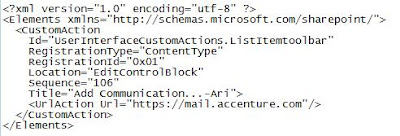
1. Go to C:\Program Files\Common Files\Microsoft Shared\web server extensions\12\TEMPLATE\FEATURES folder and create an new feature folder called "AddCommunication"
2. Save the following code as feature.xml (update the GUID using GUID generator) into"AddCommunication" folder


4. Install the feature.
stsadm -o installfeature -filename AddCommunication\feature.xml
5. Activate the feature
stsadm -o activatefeature -filename AddCommunication\feature.xml -url http://mysharepointsitecollection/
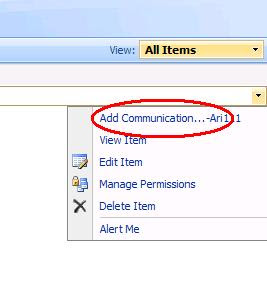
6. Go to your site and check the list item context menu drop down. This should look like the below image
stsadm -o installfeature -filename AddCommunication\feature.xml
5. Activate the feature
stsadm -o activatefeature -filename AddCommunication\feature.xml -url http://mysharepointsitecollection/
6. Go to your site and check the list item context menu drop down. This should look like the below image

This can be also done by using Java script easily, but for me feature is looking more convenient. I found a good article explaining this in Java script way
http://sizzlingpassion.spaces.live.com/blog/cns!E5CD42098EED7323!266.entry
Apart from the edit item context menu, this kind of links can be added in many menu types available in a WSS site. We need to select the correct group id of the document library or list library. A good microsoft step by step tutorial is available to understand this better.
http://msdn.microsoft.com/en-us/library/ms473643.aspx
http://sizzlingpassion.spaces.live.com/blog/cns!E5CD42098EED7323!266.entry
Apart from the edit item context menu, this kind of links can be added in many menu types available in a WSS site. We need to select the correct group id of the document library or list library. A good microsoft step by step tutorial is available to understand this better.
http://msdn.microsoft.com/en-us/library/ms473643.aspx
Friday, September 19, 2008
Hiding the Leftnavigator of SharePoint site Using JavaScript
I found in manycases of SharePoint site customization, people usually don't like the default leftnavigator option in the home page. They want to display some other customized leftnavigator or just want to have the page with out leftnavigator. This can be done easily by creating a masterpage with out leftnavigator, but if you would like to display it based on the pages/sites, for example leftnavigator is not required in homepage but its required in some other pages and in some subsites. In many of these kind of scenarios the following script and the content editor webpart are helping me lot...
1.Open the master page in SharePoint designer and the find out the Table Tag responsible for displaying the entire leftnavigator contents.
2.Just give a ID for the Tag, It should look something similar to the below tag(without the "_" in HTML tags. [make sure you are taking backup of the existing master page]
<_TABLE height="100%" id ="leftNavigatorTable" class=ms-navframe CELLPADDING=0 CELLSPACING=0 border="0">
3.Publish and approve the masterpage.
4.Open the page where you want to hide the leftnavigator.
5.Add a content editor webpart and add the following script(modify the script tag). This will hide the leftnavigator.
<_script>
document.getElementById('leftNavigatorTable').style.visibility = "hidden";
document.getElementById('leftNavigatorTable').style.display = "none";
6.If you don't want to use contenteditor webpart you can just call the following javascript function in the onload function of the BODY tag in the master page. This will hide the leftnavigator only in default.aspx
function HideLeftNavigator()
{
var url;
url = window.location.toString().split('/');
document.getElementById('leftNavigatorTable').style.visibility = "hidden";
document.getElementById('leftNavigatorTable').style.display = "none";
var length = url.length;
if(url[length-1].toLowerCase() != "default.aspx")
{
document.getElementById('leftNavigatorTable').style.visibility = "visible";
document.getElementById('leftNavigatorTable').style.display = "inline";
}
}
Happy Learning!!!!!!!
1.Open the master page in SharePoint designer and the find out the Table Tag responsible for displaying the entire leftnavigator contents.
2.Just give a ID for the Tag, It should look something similar to the below tag(without the "_" in HTML tags. [make sure you are taking backup of the existing master page]
<_TABLE height="100%" id ="leftNavigatorTable" class=ms-navframe CELLPADDING=0 CELLSPACING=0 border="0">
3.Publish and approve the masterpage.
4.Open the page where you want to hide the leftnavigator.
5.Add a content editor webpart and add the following script(modify the script tag). This will hide the leftnavigator.
<_script>
document.getElementById('leftNavigatorTable').style.visibility = "hidden";
document.getElementById('leftNavigatorTable').style.display = "none";
6.If you don't want to use contenteditor webpart you can just call the following javascript function in the onload function of the BODY tag in the master page. This will hide the leftnavigator only in default.aspx
function HideLeftNavigator()
{
var url;
url = window.location.toString().split('/');
document.getElementById('leftNavigatorTable').style.visibility = "hidden";
document.getElementById('leftNavigatorTable').style.display = "none";
var length = url.length;
if(url[length-1].toLowerCase() != "default.aspx")
{
document.getElementById('leftNavigatorTable').style.visibility = "visible";
document.getElementById('leftNavigatorTable').style.display = "inline";
}
}
Happy Learning!!!!!!!
Using JavaScript in Content Editor webpart
Adding the script in a ContentEditor webpart is very staraightforward and easy too. For example if we want to execute a script while loading the page, we just need to add a content editor webpart in the page and add the script in the Source editor of the content editor webpart. For example to give a simple alert message while loading the page, the follwoing steps are suffient.
1.Open the page in edit mode.
2.Add a content editor webpart and click on "Modify shared webpart" option.
3.Click on the sourceEditor button and paste the following simple code(with correct script tag) in the editor window. Click on Save button
<_script type="text/javascript" language="javascript">
var url;
url = window.location.toString()
alert("Location: "+ url);
4.Check the "Hidden" check box under the "Layout" section.[This will not show the contenteditor webpart in the page, because we using it just for javascript sake]
5.Click on the "Ok" button and press exit edit mode link.
6.This should display the popup box mentioning the URL of the page.
1.Open the page in edit mode.
2.Add a content editor webpart and click on "Modify shared webpart" option.
3.Click on the sourceEditor button and paste the following simple code(with correct script tag) in the editor window. Click on Save button
<_script type="text/javascript" language="javascript">
var url;
url = window.location.toString()
alert("Location: "+ url);
4.Check the "Hidden" check box under the "Layout" section.[This will not show the contenteditor webpart in the page, because we using it just for javascript sake]
5.Click on the "Ok" button and press exit edit mode link.
6.This should display the popup box mentioning the URL of the page.
Calling a javascript function while loading default.aspx
There are different techniques available to call a javascript function in a sharepoint page. Following is one of the feasible solution. The idea is to include the external javascript file reference in the master page of the site and include it in the onload event of the BODY tag. Just follow the below simple steps to do this - may be only for beginners ;).
1.Create a Javascript file named myScript.js.
2.Add a simple javascript function like this.
function myFunction()
{
alert("alert from myFunction.");
}
3.Place the file into C:\Program Files\Common Files\Microsoft Shared\web server extensions\12\TEMPLATE\LAYOUTS folder.
4.Open the site where you need to call the function.
5.Activate the "Office SharePoint Server Publishing" feature to enable selecting masterpage. By going to "SiteSettings-->Site features" option under the "Site Administration" section. Click on the "Activate" button besides the "Office SharePoint Server Publishing" feature.
[if you get the error "One or more features must be turned on before this feature can be activated." you need to activate the "Office SharePoint Server Publishing Infrastructure" in site collection level]
6.Go to site settings and click on the "Master pages and page layouts" link under the Galleries section.
7.Select default.aspx and click on the "Edit in Microsoft SharePoint Designer" link from the context menu.
8.Click on File-->SaveUs from SharePoint Designer and save the default.master as TestJavaScript.master
9.Do some changes to differentiate this file from default.master (eg: removing the welcome links or applying different .css classes)
10.Find the body tag of the master page, it should look something similar to (i am including the "_" with the HTML tags to avoid the blogger interpreting it as HTML)
<_body scroll="yes" onload="javascript:if (typeof(_spBodyOnLoadWrapper) != 'undefined') _spBodyOnLoadWrapper();">
11.Add a reference to our new javascript file just above the BODY tag.
<_script type="text/javascript" src="_layouts/myScript.js"> <_script>
12.Now...just add our function name to the onload event like this and save the file.
<_body scroll="yes" onload="javascript:if (typeof(_spBodyOnLoadWrapper) != 'undefined') _spBodyOnLoadWrapper();myFunction();">
13.Right click the "TestJavaScript1.master" from the left navigator(Folder List) and click on "Check in". Choose the "Publish a major version" option and click Ok button.
14.Click on Yes in the approval dialog box. Master page gallery will open. Select the TestJavaScript file and click on Approve/reject from the context menu. Select "Approve" option and click on OK button.
15.Its almost done. Now we just need to select the "TestJavaScript.master". Go to "SiteSettings-->MasterPage" option under the "Look and Feel" section and select the "TestJavaScript.master" from Site MasterPage and SystemMasterPage sections.
16.Go to the homepage of the site you should be getting the popup message "alert from myFunction."
1.Create a Javascript file named myScript.js.
2.Add a simple javascript function like this.
function myFunction()
{
alert("alert from myFunction.");
}
3.Place the file into C:\Program Files\Common Files\Microsoft Shared\web server extensions\12\TEMPLATE\LAYOUTS folder.
4.Open the site where you need to call the function.
5.Activate the "Office SharePoint Server Publishing" feature to enable selecting masterpage. By going to "SiteSettings-->Site features" option under the "Site Administration" section. Click on the "Activate" button besides the "Office SharePoint Server Publishing" feature.
[if you get the error "One or more features must be turned on before this feature can be activated." you need to activate the "Office SharePoint Server Publishing Infrastructure" in site collection level]
6.Go to site settings and click on the "Master pages and page layouts" link under the Galleries section.
7.Select default.aspx and click on the "Edit in Microsoft SharePoint Designer" link from the context menu.
8.Click on File-->SaveUs from SharePoint Designer and save the default.master as TestJavaScript.master
9.Do some changes to differentiate this file from default.master (eg: removing the welcome links or applying different .css classes)
10.Find the body tag of the master page, it should look something similar to (i am including the "_" with the HTML tags to avoid the blogger interpreting it as HTML)
<_body scroll="yes" onload="javascript:if (typeof(_spBodyOnLoadWrapper) != 'undefined') _spBodyOnLoadWrapper();">
11.Add a reference to our new javascript file just above the BODY tag.
<_script type="text/javascript" src="_layouts/myScript.js"> <_script>
12.Now...just add our function name to the onload event like this and save the file.
<_body scroll="yes" onload="javascript:if (typeof(_spBodyOnLoadWrapper) != 'undefined') _spBodyOnLoadWrapper();myFunction();">
13.Right click the "TestJavaScript1.master" from the left navigator(Folder List) and click on "Check in". Choose the "Publish a major version" option and click Ok button.
14.Click on Yes in the approval dialog box. Master page gallery will open. Select the TestJavaScript file and click on Approve/reject from the context menu. Select "Approve" option and click on OK button.
15.Its almost done. Now we just need to select the "TestJavaScript.master". Go to "SiteSettings-->MasterPage" option under the "Look and Feel" section and select the "TestJavaScript.master" from Site MasterPage and SystemMasterPage sections.
16.Go to the homepage of the site you should be getting the popup message "alert from myFunction."
Adding a logo in a SharePoint Workflow email response
SharePoint designer's email body editor will have the ability to support the emails with HTML format. So if we want to display a logo in a email message we can just use a simple HTML image tag .
Also, makesure that the logo should be accessible anonymously by all the receivers of the email. If not, it will be prompting for the credentials once they open the email messages.
Also, makesure that the logo should be accessible anonymously by all the receivers of the email. If not, it will be prompting for the credentials once they open the email messages.
Saturday, August 30, 2008
Failed to extract the cab file in the solution error while deploying the .WSP file
I got a requirement to create a site definition from a site. I created a blank SharePoint site and applied all the customization required on top of the blank site,it involved mainly the SharePoint Designer customization, Master page changes and the customization related to List and document libraries.
Then i was using the SharePoint solution generator to create the soluction. It successfully created the solution and i was able to build the solution in Visual studio 2005. It didn't give any issue while creating the .wsp file too.
But the problem happened when i was trying to deploy the solution from visualStudio 2005 using the "Deploy solution" option. It failed and gave me an error Deploy failed: "Failed to extract the cab file in the solution"
I tried to add the solution using the stsadm.exe -o addsolution command but got the same result.
After some more investigation i found that the issue is becuase .wsp packages with the filenames containing special characters will give the mentioned error while adding the solution to the SharePoint solution store.
So, I verified my new site definition project files created by solution generator. As expected, it was because of a file i named it with special characters while customizing the site. I had named that file as Newform(backup).aspx that was the reason for the problem. I just renamed that file without special characters rebuilt the project again, then deployed the site definition using "deploy solution" option.
It worked fine.
Then i was using the SharePoint solution generator to create the soluction. It successfully created the solution and i was able to build the solution in Visual studio 2005. It didn't give any issue while creating the .wsp file too.
But the problem happened when i was trying to deploy the solution from visualStudio 2005 using the "Deploy solution" option. It failed and gave me an error Deploy failed: "Failed to extract the cab file in the solution"
I tried to add the solution using the stsadm.exe -o addsolution command but got the same result.
After some more investigation i found that the issue is becuase .wsp packages with the filenames containing special characters will give the mentioned error while adding the solution to the SharePoint solution store.
So, I verified my new site definition project files created by solution generator. As expected, it was because of a file i named it with special characters while customizing the site. I had named that file as Newform(backup).aspx that was the reason for the problem. I just renamed that file without special characters rebuilt the project again, then deployed the site definition using "deploy solution" option.
It worked fine.
Subscribe to:
Posts (Atom)

_526_525.jpg)


